

Documentation Contents
- Overview
- Requirements
- Getting Started
- Creating Smart Content
- Using Smart Content in Gutenberg
- Using Smart Content in the Classic Editor
- Using Smart Variables
- How Smart Content Sync Fits Into WordPress Content Management
- Common Use Cases
- Troubleshooting
Overview of This Reusable Content WordPress Plugin
Smart Content Sync – a Reusable Content WordPress plugin – lets you create centrally managed content blocks and reuse them across posts, pages, and WooCommerce products. When you update the content once, it automatically updates everywhere it is used.
Smart Content Sync lets you create reusable content once and automatically sync it across your WordPress site.
WordPress includes a basic reusable blocks feature, but it offers limited control when content needs to be managed centrally or reused at scale. Smart Content Sync builds on this concept with a more structured approach. For reference, see the official WordPress documentation on reusable blocks .
For an overview of features and use cases, see the Smart Content Sync product page.
This documentation covers the core workflow:
- creating Smart Content
- inserting it in Gutenberg and the Classic Editor
- updating content and verifying it syncs site-wide
Requirements
- WordPress (current supported version on your site)
- Optional: WooCommerce (only required if you plan to reuse content in products)
Getting Started
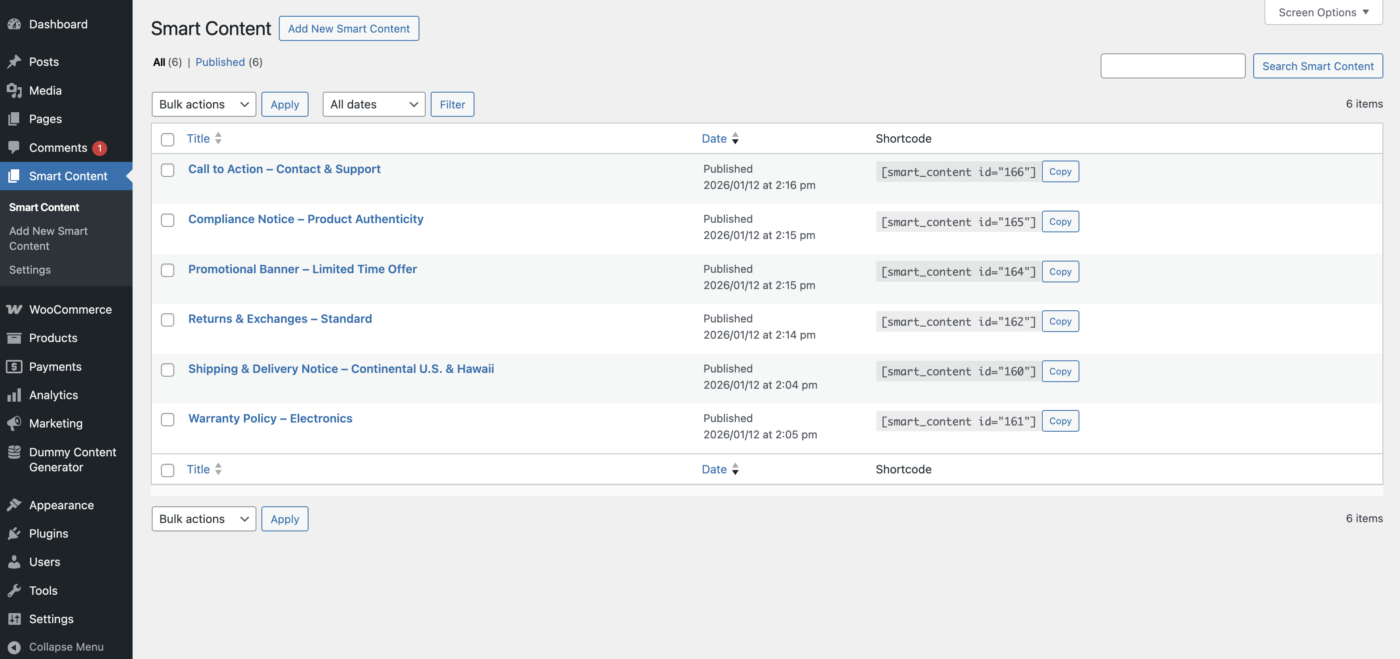
- Install and activate Smart Content Sync.
- In the WordPress admin menu, open Smart Content Sync (or Smart Content, depending on your menu label).
- Click Add New to create your first Smart Content item.
Creating a Smart Content block
- Go to Smart Content Sync → Add New.
- Give your Smart Content a clear title that reflects its purpose. Examples:
- Shipping & Delivery Notice – Continental U.S. & Hawaii
- Warranty Policy – Electronics
- Returns & Exchanges – Standard
- Add the content in the editor.
- Publish the Smart Content.
Tip: Use short paragraphs and clear headings. This content may appear in many places.
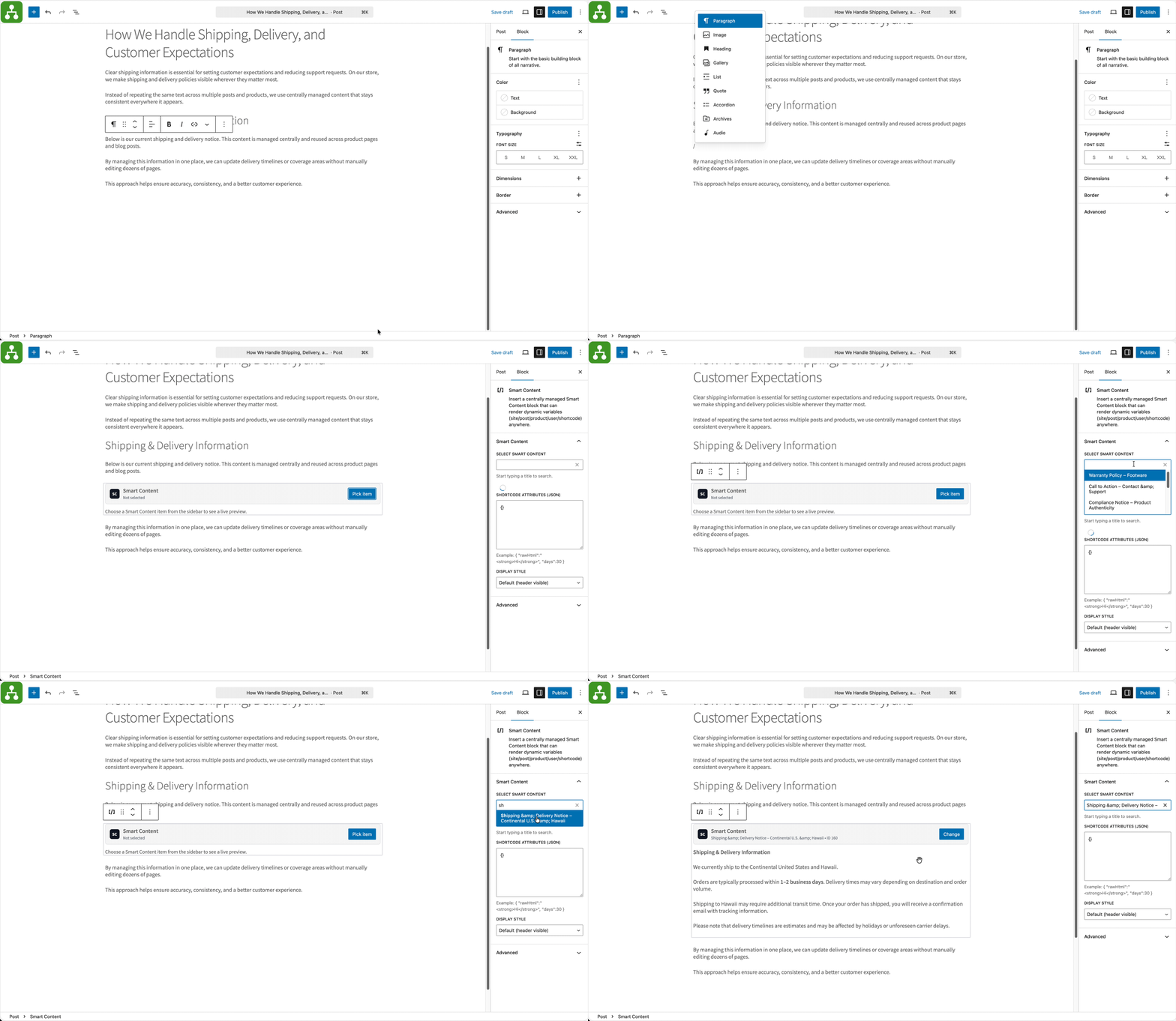
Inserting Smart Content in Gutenberg
- Open the post, page, or product in the Block Editor.
- Add the Smart Content Sync block.
- Search for and select the Smart Content item you want to insert.
- Update or publish the post.
Expected result: the selected Smart Content is rendered in the editor preview and on the front end.
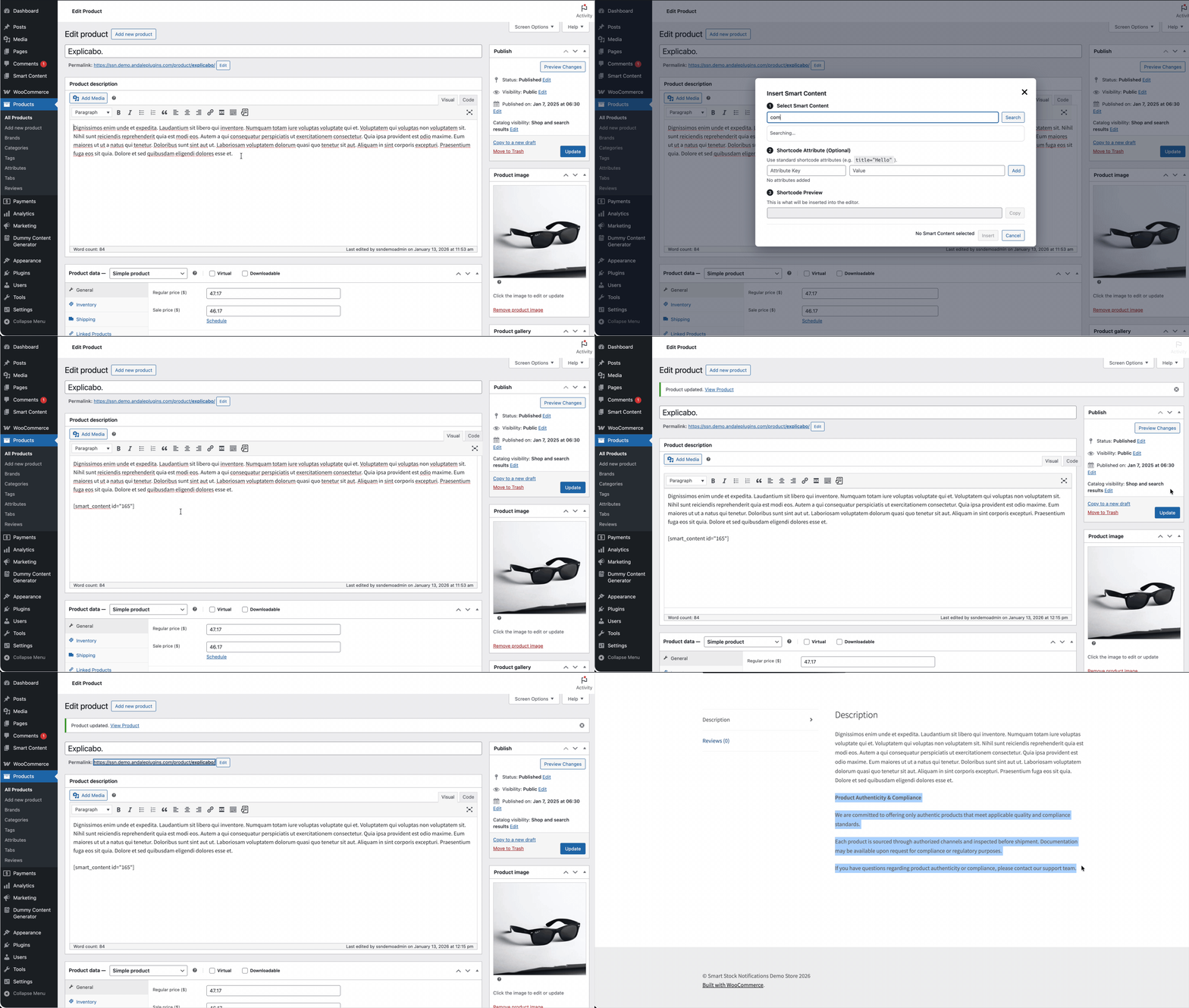
Inserting Smart Content in the Classic Editor
- Open the post, page, or product in the Classic Editor.
- Insert the Smart Content shortcode where you want the content to appear.
- Save or update the post.
If you are unsure which shortcode to use, open the Smart Content item in the admin and copy the provided shortcode.
Updating content and syncing site-wide
- Edit the Smart Content item.
- Make your changes and click Update.
- Visit any post/page/product that uses this Smart Content item.
- Confirm the updated content appears.
No re-insertion is required. Updates are applied automatically wherever the Smart Content is used.
Using Smart Variables
Smart Content Sync supports Smart Variables, which let reusable content adapt automatically based on where it is displayed. Smart Variables are placeholders written using double curly braces, for example:
{{ site.name }}When the Smart Content is rendered, these placeholders are replaced with real values from the current context.
Important: variables are exposed as dot-accessible keys (for example site.name). This is handled automatically by the plugin.
Supported Smart Variables
The following variables are currently supported.
Site Variables
- {{ site.name }} – Site name
- {{ site.description }} – Site description
- {{ site.tagline }} – Alias of site description (same value as
site.description) - {{ site.url }} – Site home URL
- {{ site.admin_email }} – Site admin email
Smart Content Item Variables (the Smart Content being rendered)
- {{ post.id }} – Smart Content item ID
- {{ post.title }} – Smart Content item title
- {{ post.slug }} – Smart Content item slug
- {{ post.excerpt }} – Smart Content item excerpt
- {{ post.url }} – Smart Content item permalink
- {{ post.type }} – Smart Content post type
Smart Content Meta Variables
All post meta for the Smart Content item is exposed under meta. WordPress stores post meta as arrays, so most meta values will be accessible using an index. Example:
{{ meta.your_meta_key.0 }}Notes:
- {{ meta.* }} – Any meta key for the Smart Content item (flattened). Use
.0for the first value when meta is stored as an array.
Host Post Variables (where the Smart Content is being displayed)
When Smart Content is rendered inside a post, page, or product, the host context is exposed under host.
- {{ host.id }} – Host post ID
- {{ host.title }} – Host post title
- {{ host.type }} – Host post type (post/page/product/etc.)
- {{ host.url }} – Host post permalink
Product Variables (WooCommerce)
If WooCommerce is active and the Smart Content is rendered in a product context, product data is exposed under product. Prices are formatted using WooCommerce formatting when available.
- {{ product.id }} – Product ID
- {{ product.name }} – Product name
- {{ product.sku }} – Product SKU
- {{ product.price }} – Current product price (formatted)
- {{ product.regular_price }} – Regular price (formatted)
- {{ product.sale_price }} – Sale price (formatted)
- {{ product.url }} – Product permalink
- {{ product.stock_status }} – Stock status (for example:
instock,outofstock) - {{ product.stock_quantity }} – Stock quantity (may be empty if not managed)
- {{ product.is_on_sale }} –
yesorno
Shop Variables (WooCommerce)
If WooCommerce is active, shop-level values are exposed under shop.
- {{ shop.currency }} – Store currency code (for example:
USD) - {{ shop.currency_symbol }} – Store currency symbol (for example:
$) - {{ shop.name }} – Store name (currently uses the WordPress site name)
User Variables
User context is always available under user. If the visitor is not logged in, only user.logged_in is set to no.
- {{ user.logged_in }} –
yesorno - {{ user.id }} – User ID (logged-in users only)
- {{ user.username }} – Username (logged-in users only)
- {{ user.email }} – Email (logged-in users only)
- {{ user.name }} – Display name (logged-in users only)
- {{ user.display_name }} – Alias of display name (same value as
user.name) - {{ user.role }} – Primary role (logged-in users only)
Shortcode Variables
When Smart Content is inserted via shortcode, all shortcode attributes are exposed under shortcode. For example, if you insert:
[smart_content id="123" note="hello"]You can reference attributes like:
{{ shortcode.id }}
{{ shortcode.note }}- {{ shortcode.* }} – Any shortcode attribute passed into the Smart Content shortcode
Tip: Smart Variables are optional. Smart Content works perfectly with static text as well.
How Smart Content Sync Fits Into WordPress Content Management
WordPress sites often grow organically over time. As new pages, posts, and products are added, shared content is frequently duplicated instead of reused. This makes long-term maintenance more difficult, especially when information needs to be updated consistently across the site.
Smart Content Sync provides a structured way to manage reusable content in WordPress. By separating content creation from content placement, site administrators can update shared information from a single location without manually editing multiple pages.
This approach is particularly useful for WooCommerce stores and content-heavy websites, where accuracy, consistency, and efficiency are critical.
Common Use Cases
Smart Content Sync is commonly used for:
- shipping and delivery notices
- warranty and returns policies
- compliance text and legal disclaimers
- reusable promotional banners
- reusable calls-to-action
WooCommerce Example: Policies in Product Tabs
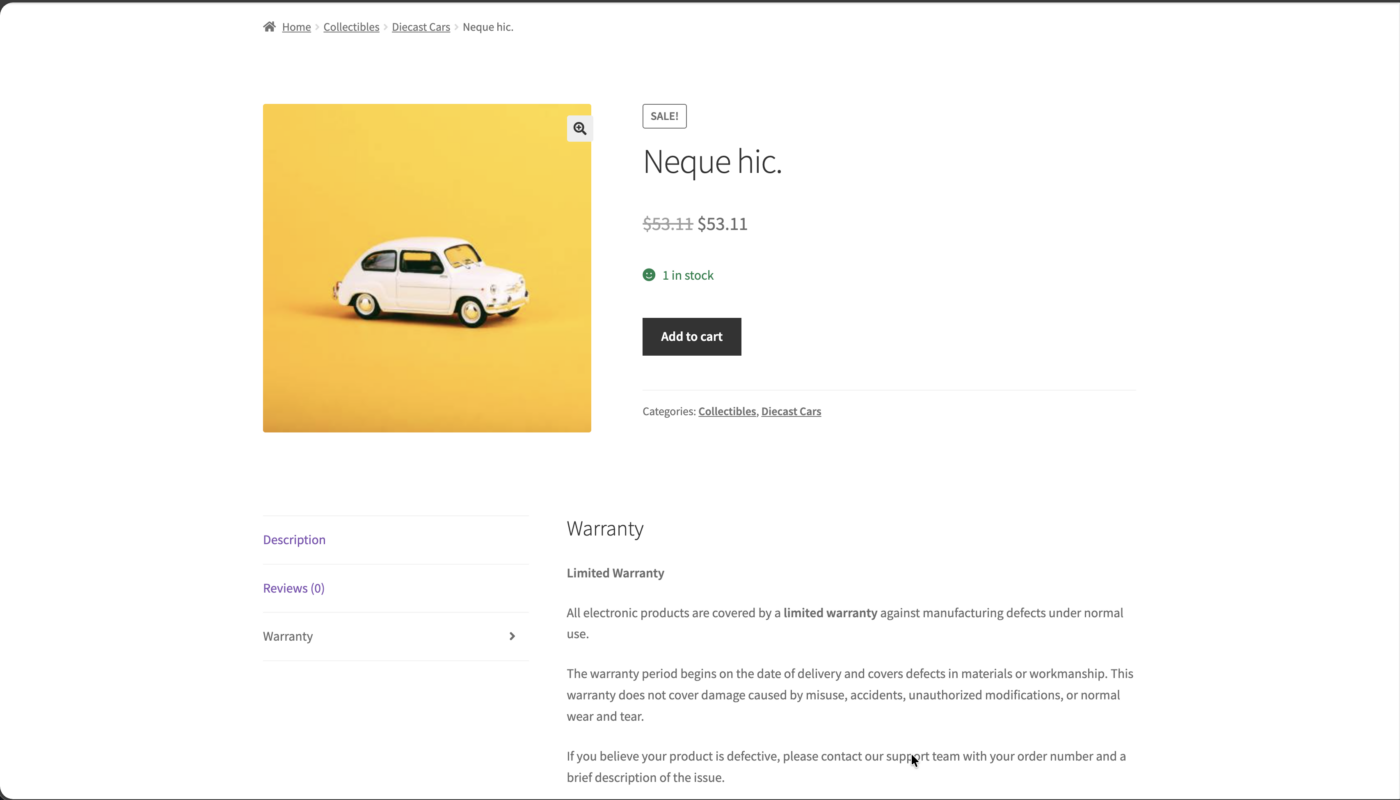
Smart Content Sync is ideal for content that must stay consistent across many products, such as warranty policies. A single Smart Content item can be reused as a dedicated product tab.
Troubleshooting
The content does not appear on the front end
- Confirm the post/page/product is updated and not still in draft.
- Confirm the Smart Content item is published.
- Clear any caching layers (plugin cache, server cache, CDN).
The block is inserted but shows no preview
- Confirm you selected a Smart Content item in the block sidebar.
- If your site is heavily cached, refresh the editor page and try again.
I updated Smart Content but the old content still shows
- Clear page cache and object cache if enabled.
- If using a CDN, purge the relevant URL.
Support
If you need help, contact support or open a support request using the contact options on AndalePlugins.com.